Document Reader & PDF Editor
QR Code Scanner.Productivity
4.54.50K Reviews
- Version
- 1.3.5.83
- Installs
- 100.00M
- Age Rating
- Everyone
Screenshots
Our Review of Document Reader & PDF Editor
 Analysis by Appyee
I reach for a document reader when a file lands on my phone and I need to check it without moving to a laptop. Document Reader & PDF Editor is built for that everyday job: opening common office files and PDFs in one place. Its appeal is practical rather than glamorous. If you often receive forms, notes, or spreadsheets while away from your desk, having a single app to try first can save a little friction.
The everyday workflow: open, check, and decide
My most useful way to approach a document app is to treat it as a quick inspection tool before treating it as a full office suite. Open the file, check that the pages or sheet are readable, and decide whether the task is simply to review it or actually make changes. This distinction matters on a phone: a short PDF or a few lines in a document are manageable, while a long report or a dense spreadsheet can be tiring to work through on a small screen.
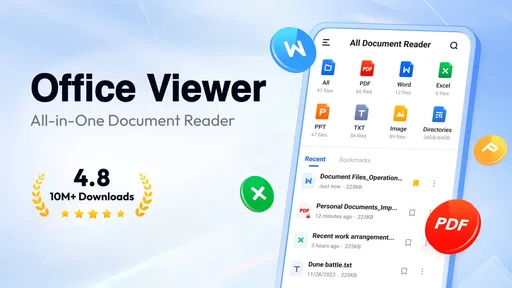
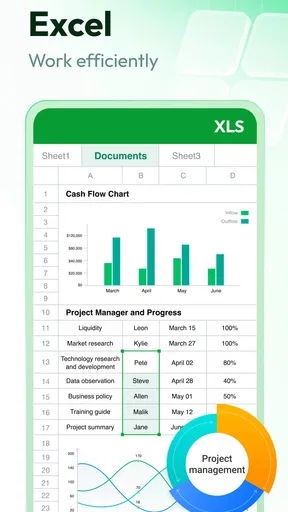
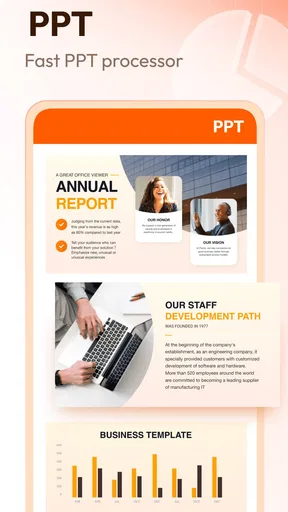
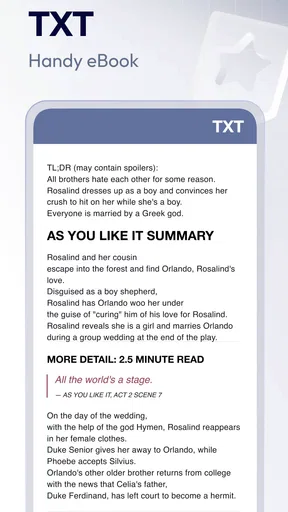
Document Reader & PDF Editor is a productivity app from QR Code Scanner. It covers PDF, DOCX, XLS, PPT, and TXT files, so it is aimed at people who encounter a mix of formats rather than only PDFs. I would use it as a convenient first stop for an attachment, a class handout, or a document saved locally. The format range is useful, but it does not make every file equally comfortable to edit on a phone.
Where it fits among document apps
Compared with opening each format in a separate specialist app, an all-in-one reader can make casual file handling simpler: there is less switching just to see what a file contains. The trade-off is that readers focused on one format may offer a more familiar or deeper workflow for that format. If most of your work is editing spreadsheets, preparing presentations, or revising long Word documents, I would compare this with the dedicated tools you already use rather than assume a general reader replaces them.
For occasional edits, a phone-first tool can be handy; for detailed layout work, I still prefer a larger screen and an app designed around the task. A practical habit is to use the reader to verify the right file and make only the changes that are easy to check visually. That avoids the common mistake of making a quick mobile edit and discovering later that a table, line break, or page arrangement needs closer attention.
Settings and habits that reduce friction
Before relying on any reader for routine work, I check how it presents files and what options are available in the version installed. I also keep file names clear before saving or sharing: a name that includes a subject or date is much easier to recognize in a crowded downloads folder than a generic label. This is not a special feature; it is a small habit that makes a document hub more useful.
When a file is important, I keep the original untouched and work from a separate copy if the app and the source location make that possible. That simple precaution is more dependable than trusting memory about which version I edited. I also reopen a changed file before sending it, especially if it contains tables or several pages. A quick check can catch an accidental blank page or a change that did not appear as expected.
Who will get the most from it
I can see this being a good fit for students who need to inspect handouts, people who receive office documents on the move, and anyone who wants a general-purpose viewer for everyday files. It is also useful when the immediate question is simply, “Can I open this here?” instead of “Can I finish a polished document here?” That modest role is often enough to make a mobile reader worthwhile.
I would be more cautious if your routine depends on precise formatting, extensive collaboration, or specialized spreadsheet and presentation controls. Those jobs are easier to manage in purpose-built software, particularly on a computer. The sensible choice depends on how often you edit and how exact the result needs to be, not just on how many file types an app can open.
First Impressions
Right off the bat, downloading Document Reader & PDF Editor was a breeze. It’s available on both Android and iOS, which is a huge win for those of us juggling multiple devices. Once installed, the app sports a clean and intuitive interface. No unnecessary fluff, just a straightforward design that makes navigating through your files super easy.
A World of Features
One of the things that stood out to me was the sheer versatility of this app. You can open and manage a variety of document formats, from PDFs to Word documents, Excel sheets, and more. It’s like having a Swiss Army knife for your files right in your pocket.
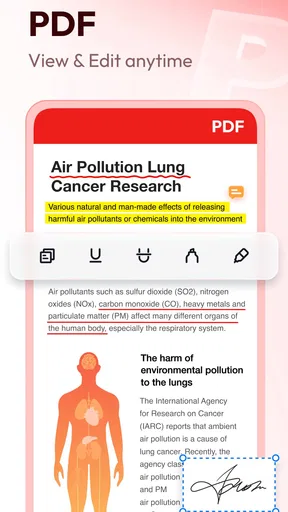
Need to view a PDF quickly? Done. Want to edit a Word document on the fly? No problem. The app even offers annotation tools, which are perfect if you’re someone who likes to highlight and jot down notes directly on your documents. It’s these little touches that really make the app feel like it was designed with the user in mind.
Editing on the Go
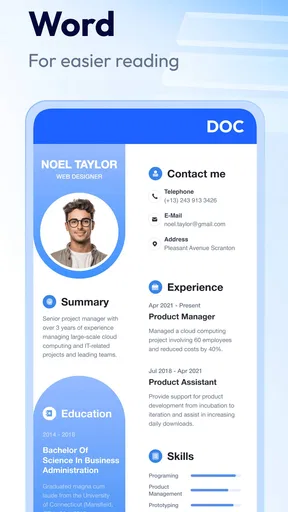
Now, let’s talk about editing. If you’re anything like me, you’ve experienced the frustration of trying to tweak a document on your phone without pulling your hair out. Thankfully, Document Reader & PDF Editor makes this process much smoother. You can edit text, adjust fonts, and even insert images without breaking a sweat.
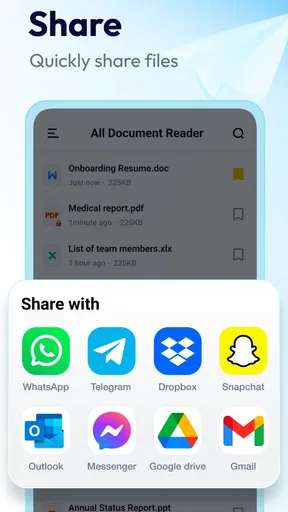
What’s more, the app supports cloud integration. So, whether you’re using Google Drive, Dropbox, or any other cloud service, you can easily sync your documents and access them from anywhere. No more emailing files back and forth or worrying about losing your work—it’s all right there, safely stored in the cloud.
Performance and User Experience
Let’s face it, nobody likes laggy apps that crash at the worst possible times. Fortunately, this app runs smoothly and efficiently. I didn’t encounter any crashes or slowdowns during my time using it, which is a testament to its solid performance.
Another highlight is the app’s ability to handle large files. Whether you’re dealing with a hefty PDF or an image-laden Word document, the app doesn’t miss a beat. This is especially important if you’re working with complex files that require a lot of processing power.
Little Extras
As if all of this wasn’t enough, the app also comes with a few nifty extras. For instance, the text-to-speech feature is a game-changer for those who prefer listening to their documents rather than reading them. It’s perfect for multitasking—just pop in your earbuds and let the app do the reading for you.
In addition, the app’s security features are worth mentioning. With password protection for sensitive documents, you can ensure that your information stays private. This is a crucial feature for anyone dealing with confidential or sensitive data.
Building a repeatable phone routine
A useful routine is to separate reading from authoring. I would first locate the file, confirm its contents, and use any annotation or editing tools only when the change is small and clear. Then I would reopen the result and check the part I touched. This is especially helpful for a form: enter a detail, inspect the relevant page, and make sure the change is visible before passing the file along.
For a meeting agenda or class notes, I would mark only the sections I need to revisit rather than trying to reorganize everything on a touchscreen. Annotations are most useful when they answer a concrete question—what needs follow-up, what is unclear, or which paragraph matters. Keeping marks purposeful makes them easier to interpret later and avoids turning a clean document into a cluttered one.
What to check before trusting a file
Document compatibility is not just a question of whether a file opens. Before relying on a mobile edit, I would look at the page layout, any tables, and the final section of the document, where formatting shifts can be easy to miss. With spreadsheets, I would verify the labels and values around the area being reviewed instead of judging the file from a single visible cell. A viewer is convenient, but a small screen can hide context.
For sensitive material, I would treat password protection as one useful safeguard, not as a reason to ignore ordinary care. Avoid editing the only copy if the document matters, and be deliberate about where the finished version is stored or shared. That is good practice with any phone-based file tool, especially when a document contains personal or work details.
Price, support, and day-to-day expectations
The app is free to install and is rated for Everyone. Its average rating is 4.7 from around 394,000 ratings, and it has passed 50 million installs, which suggests that many people use it as a general document utility. There are in-app purchases, priced from $4.99 to $19.99 per item, so I would check the purchase screen carefully before choosing any paid option and decide whether the extra value matches my own routine.
It was released on July 29, 2022, and version 1.2.9.72 is the current version. It requires Android 6.0 or later. Those details help set expectations when choosing a device, but the practical test is still whether the files you handle most often open and remain legible on your own phone. I would try a representative PDF, document, and spreadsheet before making it the default stop for important work.
Everyday scenarios where it earns a place
Imagine receiving a schedule as a PDF while heading to an appointment, then needing to check a room number and mark a question for later. A mobile reader is well suited to that quick loop: open, find the relevant detail, annotate if appropriate, and move on. In another common case, a colleague sends a DOCX that you need to review before a conversation. You can inspect the wording on the spot, while leaving substantial rewriting for a keyboard and a larger display.
It is less compelling when the task is collaborative drafting with several people making changes, or when a presentation needs careful visual polish. In those cases, a dedicated office suite is usually the better tool because the work depends on controls and review processes beyond basic reading. I see this app as a useful pocket companion, not a replacement for every office workflow.
Final Thoughts
In conclusion, Document Reader & PDF Editor has proven to be a reliable and feature-rich app that caters to a wide range of document management needs. Whether you’re a student, professional, or just someone who deals with documents regularly, this app is definitely worth checking out.
From its user-friendly interface to its robust editing capabilities and seamless cloud integration, it delivers on all fronts. So, if you’re looking for an all-in-one solution to handle your documents on the go, give this app a try. Trust me, you won’t be disappointed!
My verdict on using it well
For me, the strongest reason to keep a broad-format reader on a phone is convenience: it can make an unexpected attachment less of a nuisance and support quick checks between other tasks. The best results come from matching the tool to the job—read and annotate when speed matters, make modest edits when they are easy to verify, and move to a specialist editor when accuracy or layout becomes central.
I would recommend trying it if you regularly encounter several document formats and want one place to start. I would skip it as a primary work environment if most of your day involves detailed office production. Used with a copy-first habit and a final visual check, it has a sensible role in a mobile toolkit; used as a substitute for a full desktop workflow, it may ask more of a phone than the task deserves.
Privacy and Permissions
See what permissions an app requests and how it handles your data.
- Photos/Media/Files
- read the contents of your USB storage, modify or delete the contents of your USB storage
- Storage
- read the contents of your USB storage, modify or delete the contents of your USB storage
- Camera
- take pictures and videos
- Other
- view network connections, full network access, control vibration, prevent device from sleeping
Verdict
Strengths of Document Reader & PDF Editor
- Supports multiple document formats.
- User-friendly interface design.
- Fast document loading times.
- Offline access to documents.
- Robust annotation tools available.
Limitations of Document Reader & PDF Editor
- Limited cloud storage options.
- Occasional ads disrupt workflow.
- Text recognition can be inaccurate.
- Editing features are basic.
- Some features require premium.
Other Releases by QR Code Scanner.
View All
All Video Downloader & Player
Tools4.5

QR Code Scanner & Scanner App
Tools4.7

PDF Reader - PDF Viewer
Productivity4.3

Ringtones for Android Phone
Music & Audio4.8
Similar Picks in This Category
View All
Google Calendar
Google LLC4.6

Google Drive
Google LLC4.3

Google Assistant
Google LLC3.9

Microsoft OneDrive
Microsoft Corporation4.6

Samsung Calendar
Samsung Electronics Co., Ltd.4.1

Microsoft OneNote: Save Notes
Microsoft Corporation4.6
Frequently Asked Questions
What features does Document Reader & PDF Editor offer?
Document Reader & PDF Editor provides a comprehensive suite of tools for managing PDF documents. Users can open, view, annotate, and edit PDFs with ease. The app supports adding comments, highlighting text, and filling out forms. Additionally, it offers cloud integration for seamless access across devices.
Is Document Reader & PDF Editor compatible with all file types?
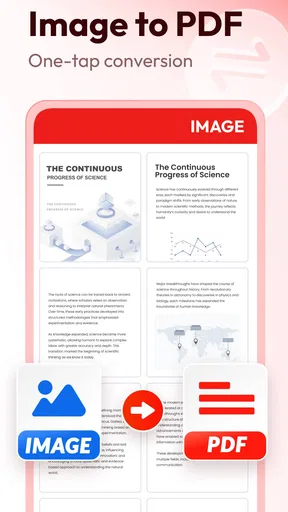
While the app primarily focuses on PDF files, it also supports a range of other document formats. This includes Microsoft Word, Excel, and PowerPoint files. Users can convert these documents to PDFs for easy editing and sharing, making it a versatile tool for various document needs.
Does the app require an internet connection to function?
Document Reader & PDF Editor can be used offline for many of its core features, such as viewing and editing PDFs. However, certain functionalities, like cloud storage access and document sharing, will require an internet connection to sync files across devices and collaborate with others.
Is Document Reader & PDF Editor free to use?
The app offers a free version with basic features suitable for everyday use. However, there are premium options available that unlock advanced functionalities like OCR scanning, advanced editing tools, and additional cloud storage. Users can choose to subscribe for added features and enhanced capabilities.
How secure is Document Reader & PDF Editor for sensitive documents?
Security is a top priority for Document Reader & PDF Editor. The app employs encryption to protect your files and offers password protection for sensitive documents. Additionally, it provides options for secure cloud storage, ensuring that your data remains safe and private across all devices.
